
If you're a Service Provider juggling hiring activity across multiple clients, the Hiring Dashboard is about to become your new favorite tab. It pulls hiring KPIs and active job reporting for all your clients into one centralized view, right inside PrismHR, so you're not hopping between systems to see what's going on.
Getting it set up takes a few configuration steps on the PrismHR side plus one quick check in the ATS. Here's exactly how to do it.
Step 1: Create the Custom Process in PrismHR
First, you'll create a Custom Process that tells PrismHR the Hiring Dashboard exists and how to launch it.
- In PrismHR, go to System > Parameters, open the menu, and select Custom Process.
- Create a new Custom Process using these settings:
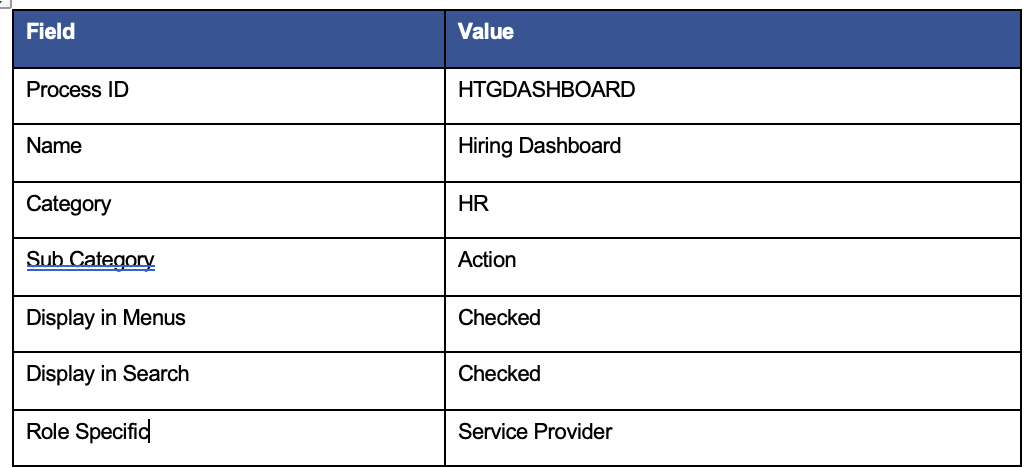
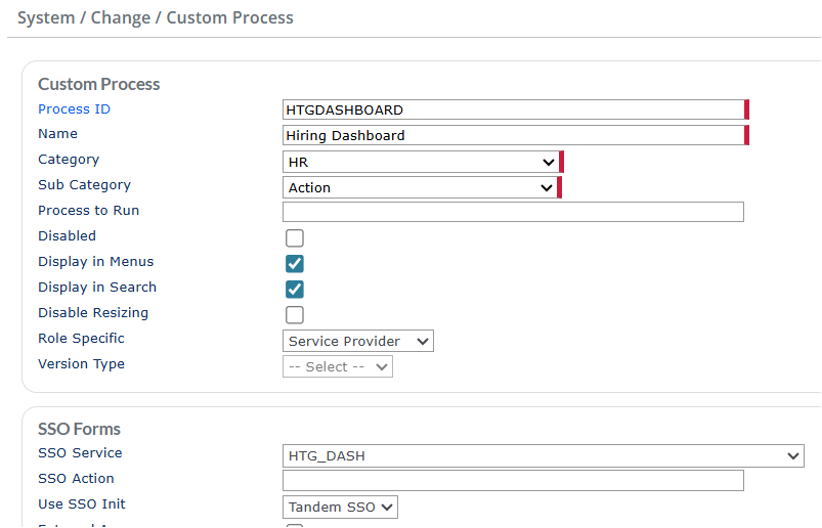
A little precision goes a long way here — double-check that the Process ID and SSO Service values match exactly, since these are what make the single sign-on connection work behind the scenes.
Step 2: Update User-Role Access
Once the menu item exists, it won't show up for anyone until you tell PrismHR who's allowed to see it.
- Head to your PrismHR User Roles setup.
- Update the roles for any users who should have access to the Hiring Dashboard, so the new menu item appears for them.

Think of this as the guest list for the dashboard — only users on roles you've updated will see it in their menu.
Step 3: Confirm the ATS User Setup
For single sign-on to work smoothly, the ATS side needs to recognize the user too.
- Have an administrator add the user in the ATS under Account > Account Details > Manage Users.
- Confirm that the user's ATS email address matches their Service Provider email address in PrismHR exactly.
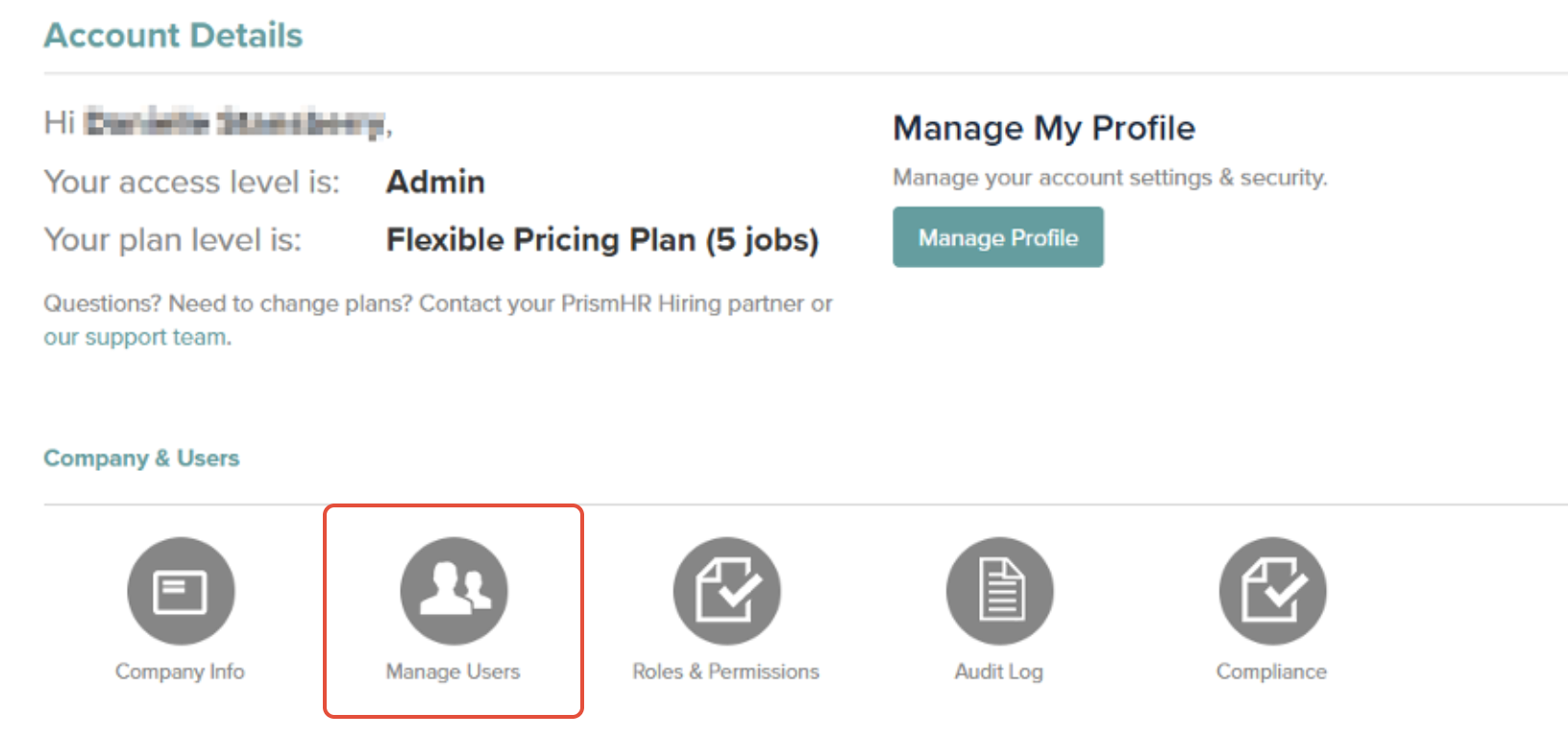
This email match is the glue that holds SSO together, so it's worth a careful once-over. Even small differences (like a typo or a "+alias" tag) will keep SSO from connecting the two accounts.
Step 4: Access the Hiring Dashboard
With everything configured, you're ready to launch it.
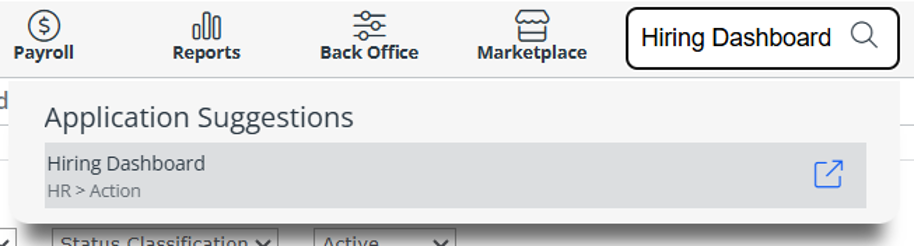
- In PrismHR, go to HR > Action > Hiring Dashboard, or simply type "Hiring Dashboard" into the PrismHR search bar and select the application suggestion.
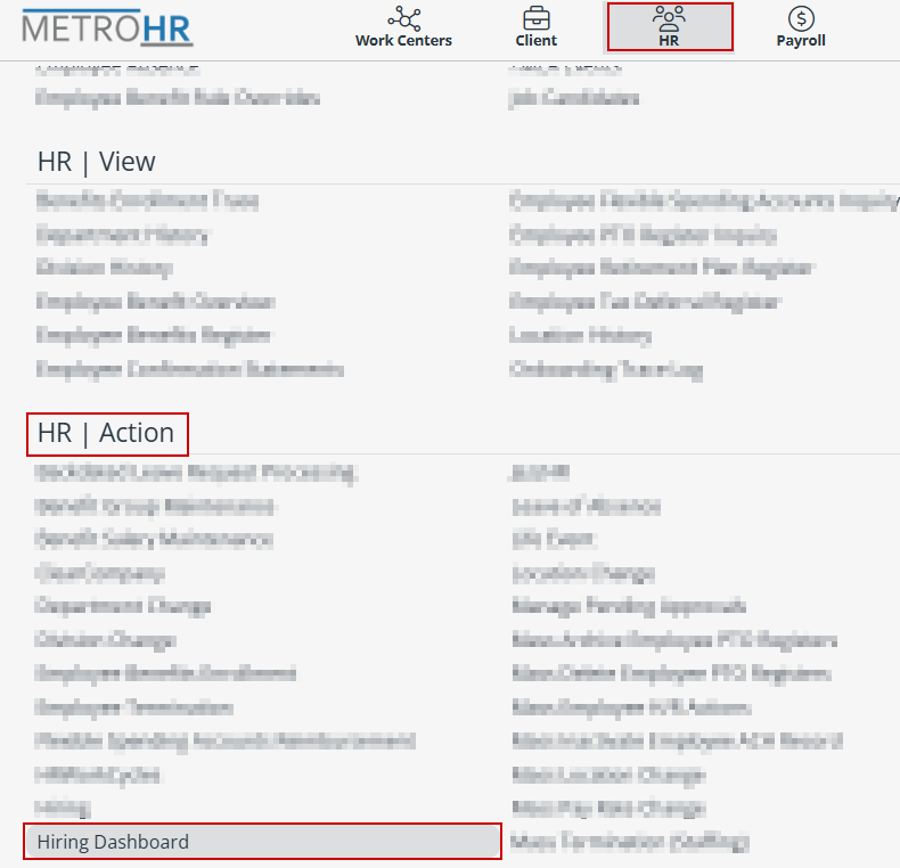
That's it — authorized users can now open the Hiring Dashboard to see hiring activity and reporting across their clients.
A few things worth knowing
- The dashboard is only available to Service Provider users who've been granted access through the correct PrismHR User Role.
- Your ATS username is your email address, and it needs to match your Service Provider email in PrismHR exactly for SSO to work.
- If the Hiring Dashboard option isn't showing up, the first two places to check are your Custom Process settings and the user's assigned User Role.
If you hit a snag anywhere along the way, our support team is happy to help you troubleshoot and get the Hiring Dashboard up and running. Reach out any time.
