
This article is intended for Service Providers and Worksite Managers responsible for managing the hiring and onboarding process.
Overview
This guide explains how to transfer applicant data from PrismHR Hiring to PrismHR to initiate the onboarding process. By selecting the Mark as Hired option, administrators can move candidate profiles directly into the Job Applicant section for final processing.
Steps to ‘Mark as Hired’ in Prism Hiring
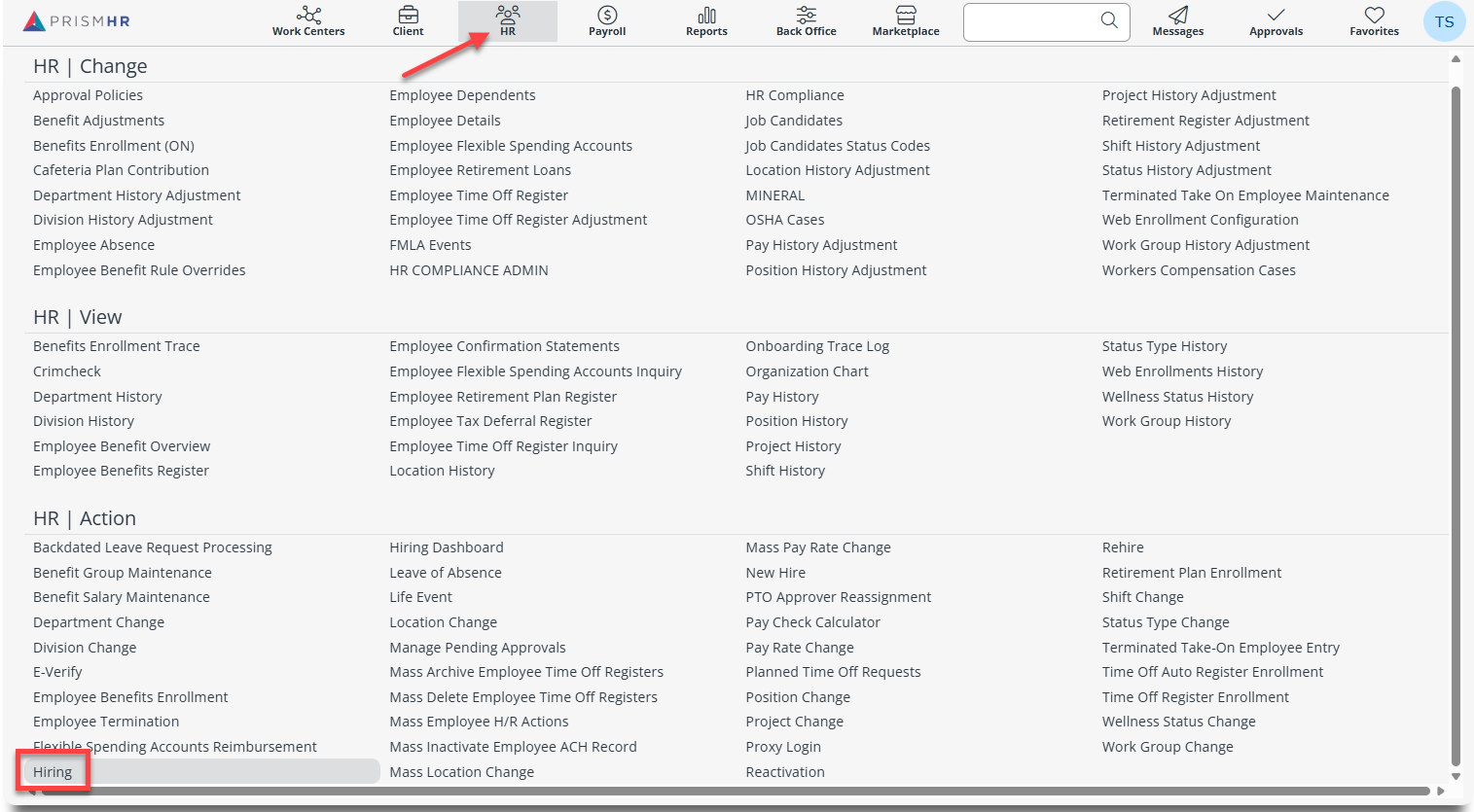
1. Navigate to HR > Action > Hiring.
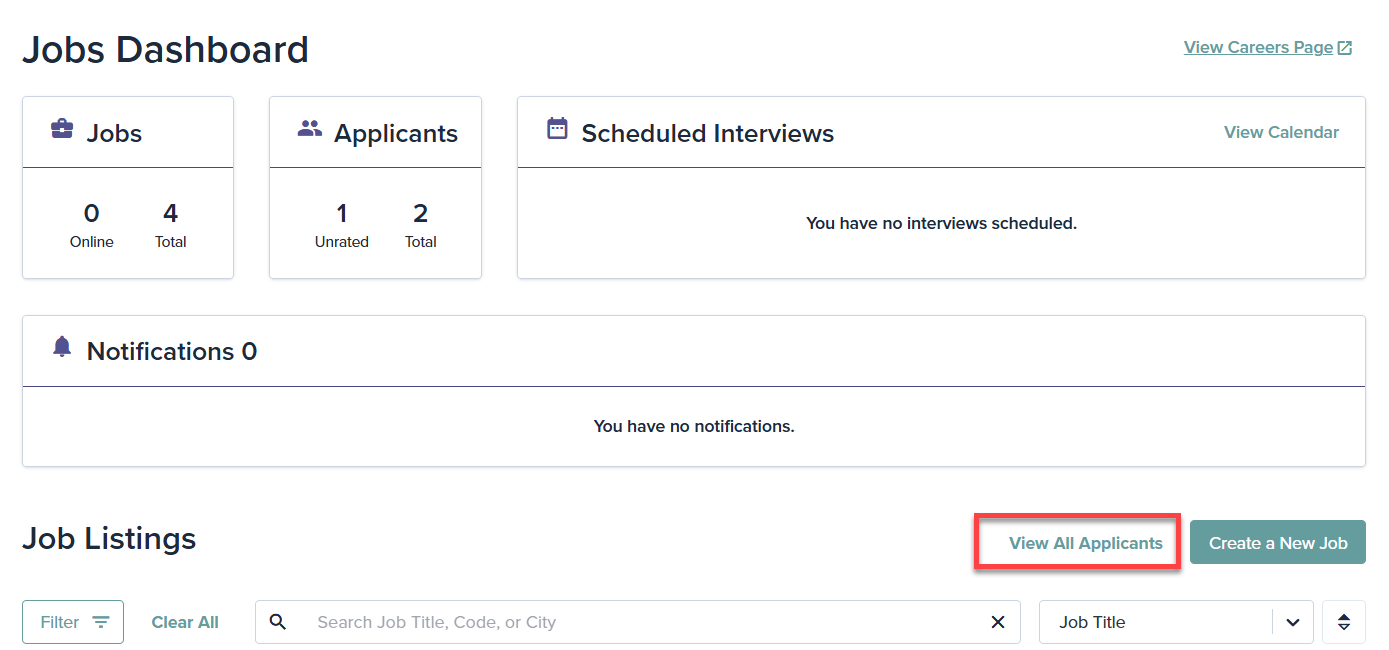
2. Select ‘View All Applicants’ from the dashboard.
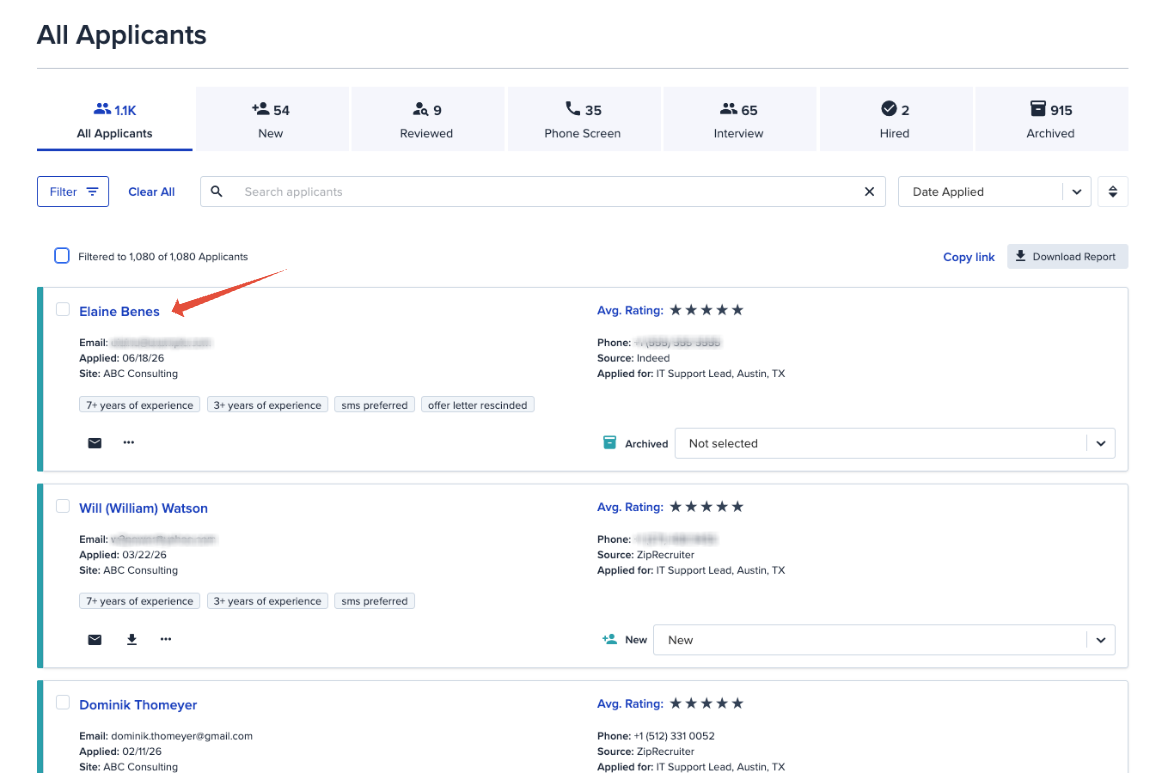
3. Once the list of applicants is available, click on the applicant name for the applicant that you intend to mark as hired. This will open the profile for the applicant.
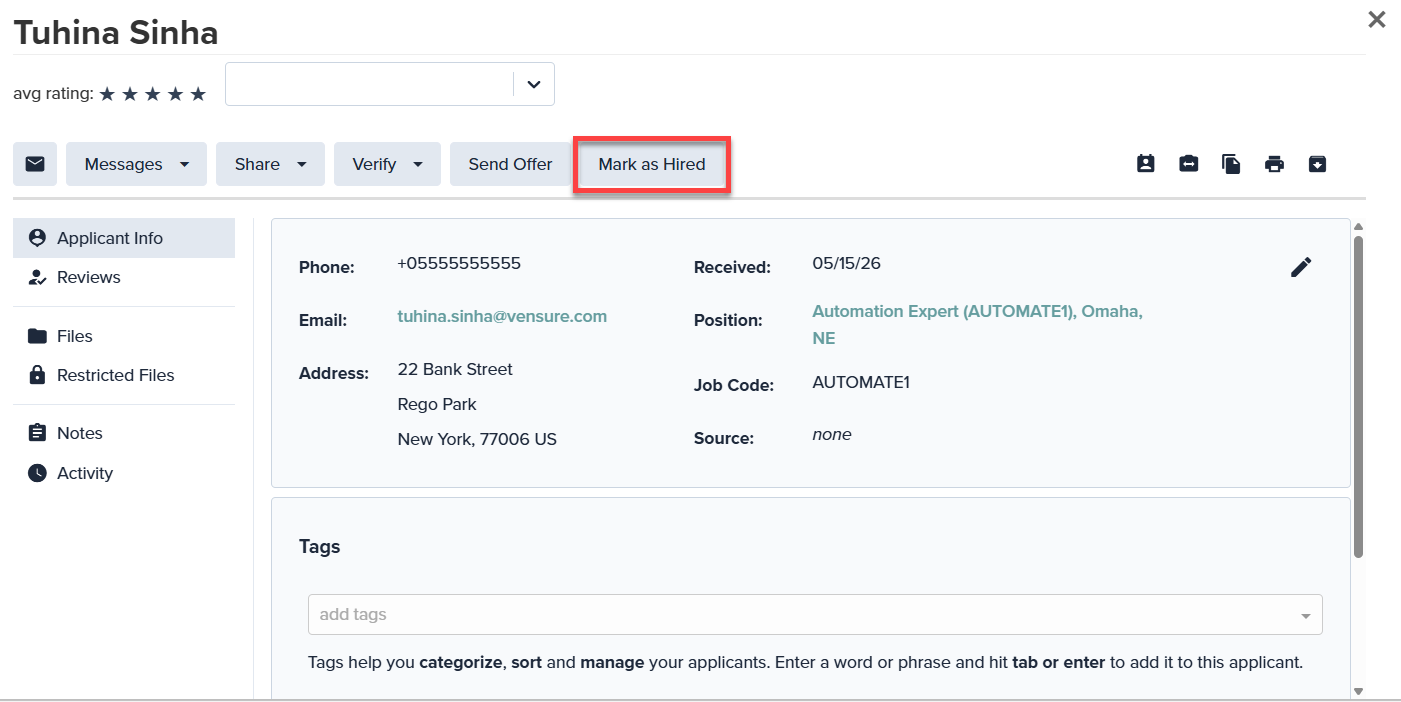
4. Select Mark as Hired to initiate the data transfer to PrismHR.
Standard Imported Fields
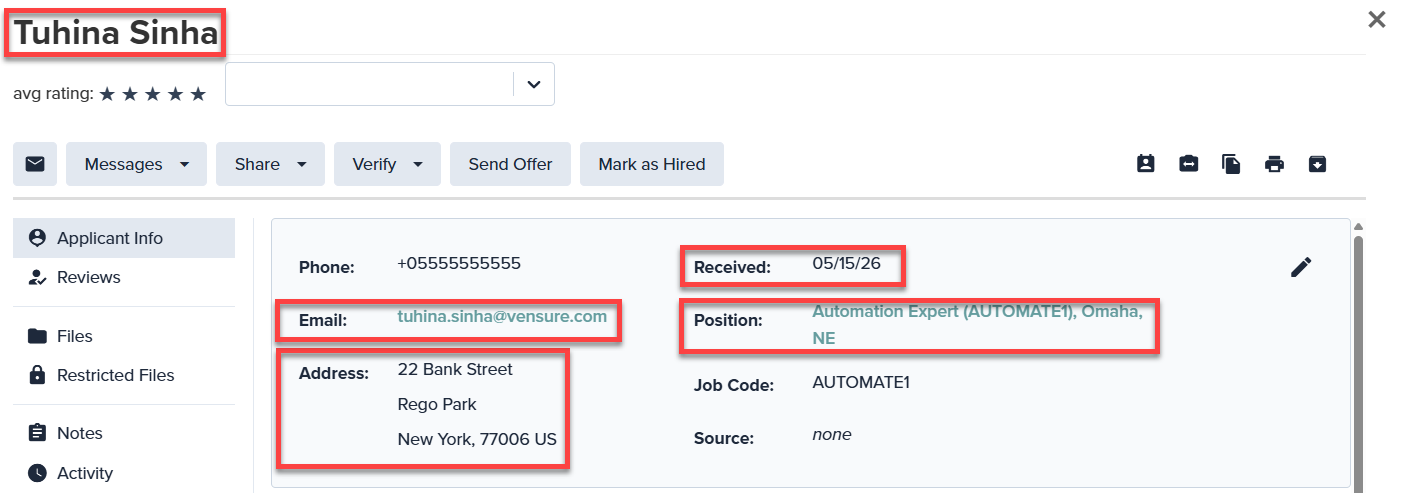
Once the hire is initiated, the system automatically transfers the following populated fields from the Hiring account to the PrismHR account:
- First name
- Last name
- Address
- Personal email address
- Position applied for
- Application date
Activated Imported Fields
Certain fields only transfer to PrismHR if they are activated within system settings or self-identified by the applicant:
- Import Gender, Ethnicity, and Veteran status if the applicant self-identifies these details on the EEOC Survey. [Figure 4: EEOC Survey data fields]
- Import the SSN and DOB if these fields are activated on the offer letter settings page. [Figure 5: Offer letter settings for SSN and DOB]
Tips/ Notes
- Data Completeness: Ensure all relevant applicant data is entered in Hiring before clicking Mark as Hired to prevent missing information in the PrismHR record.
- Survey Dependencies: Demographic data like Ethnicity or Gender will not import unless the EEOC Survey is active and completed by the candidate.
