

Workflow Management streamlines the post-application process by enabling you to send follow-up forms, request certifications or licenses, assign tasks, and keep everything moving -- even when onboarding documents are still in progress. Think of it as your behind-the-scenes coordinator, making sure nothing slips through the cracks. All data -- uploaded files, form inputs, and completion statuses -- is fully accessible via API, making it easy to integrate with your existing systems.
Where Is This Feature Located?
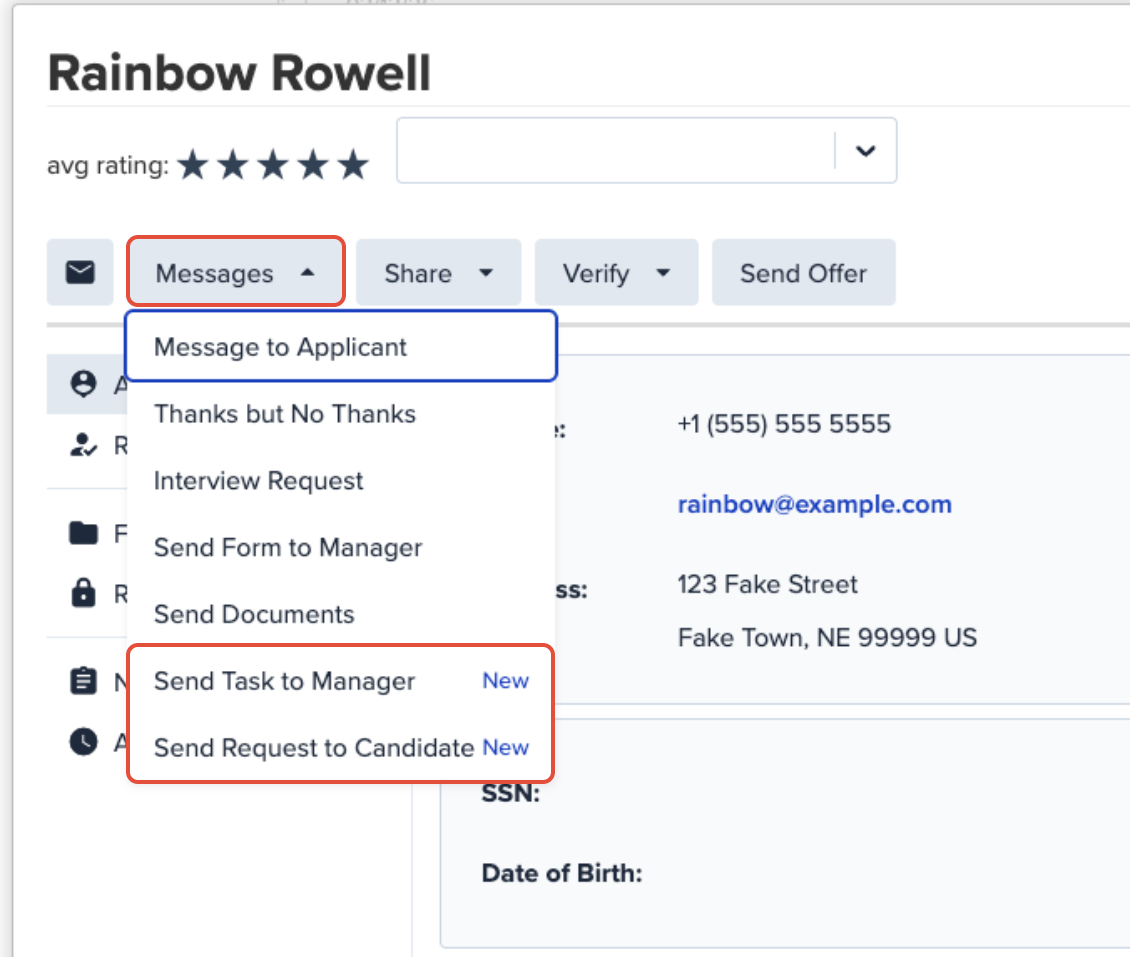
You can launch Workflow Management directly from an applicant's profile. Simply click the Messages drop-down and select either Send Task to Manager or Send Request to Candidate.
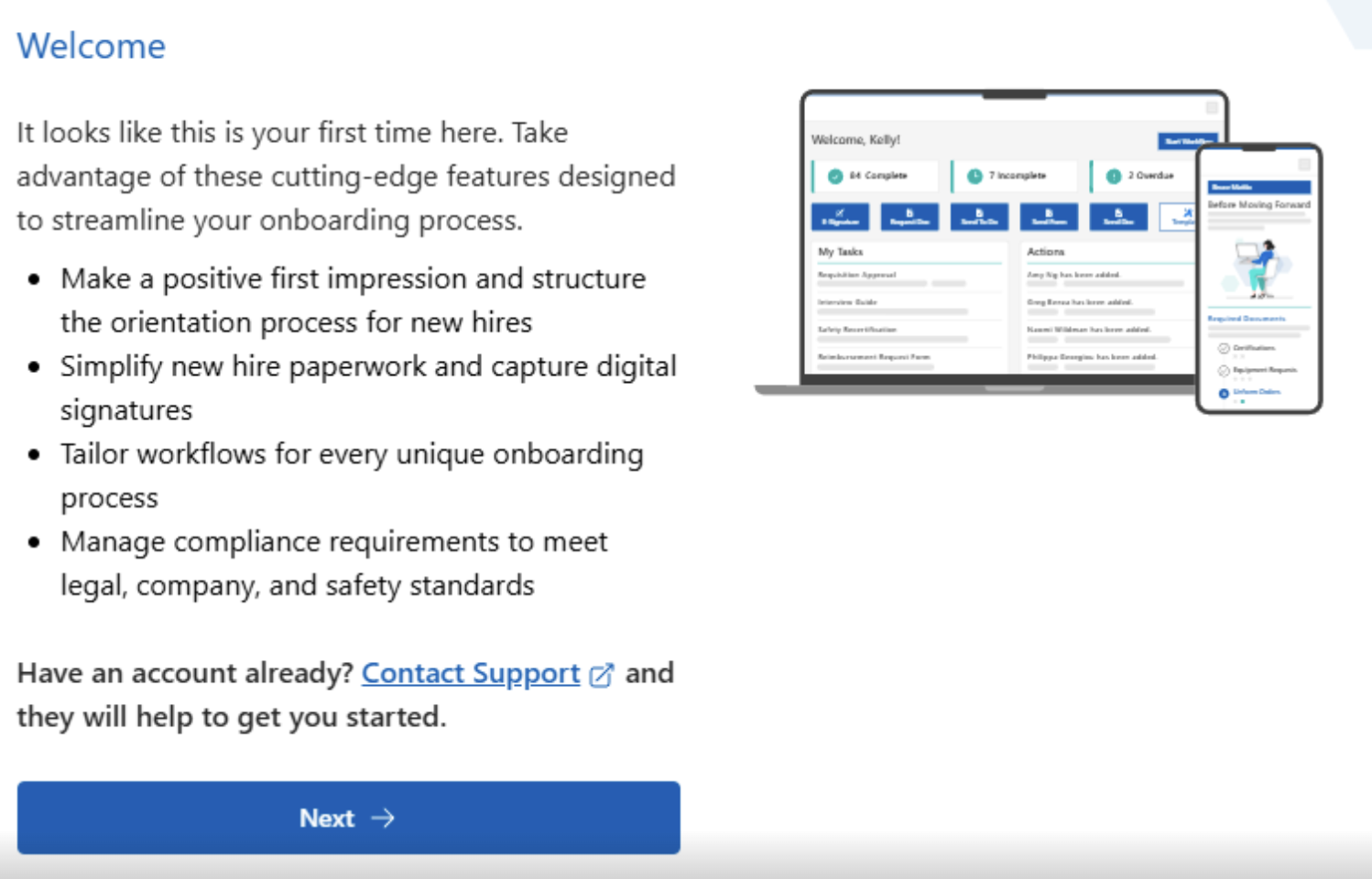
IMPORANT NOTE: If this is your first time using Workflow Management, you may be prompted to provide some additional information about yourself before being directed to the request screen you originally selected.

The screen you’ll see will look similar to the example included below. Simply follow the steps to create your Workflows account in order to proceed.
How Do I Use Send Task to Manager?
Early Access: This option is part of an early access feature set. If you do not see it in your account, it may not yet be available to you.
The Send Task to Manager option lets you quickly share essential documents, forms, tasks, or file requests with a hiring manager -- helping to keep communication streamlined and applicants on track.
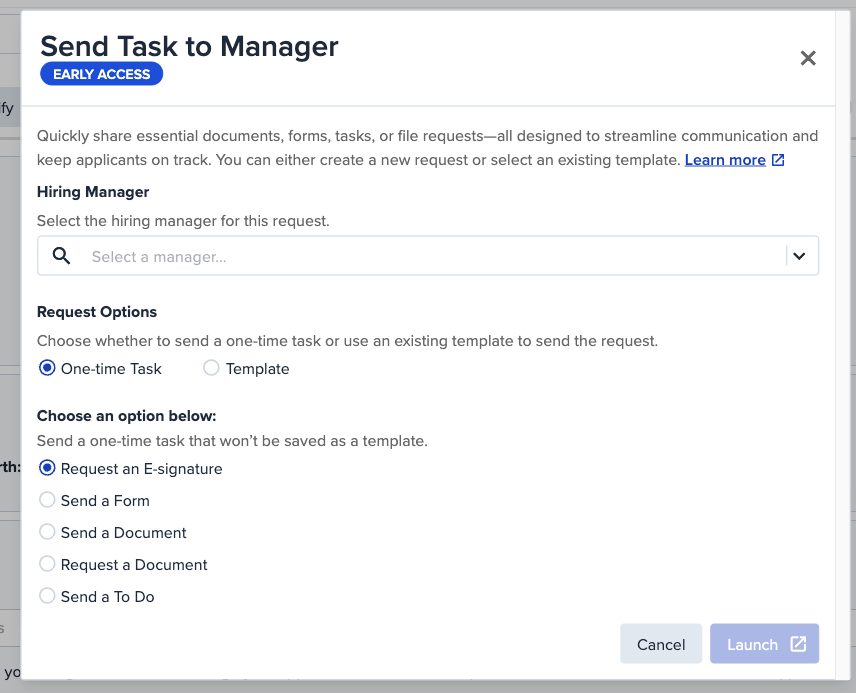
To get started, select Send Task to Manager from the Messages drop-down on the applicant profile. You will then be prompted to complete the following:
- Hiring Manager: Select the hiring manager you want to send the request to.
- Request Options: Choose how you want to send the request -- either as a one-time task or using an existing template.
- One-Time Task: Send a task that will not be saved as a template. Choose from the following task types:
- Request an E-signature
- Send a Form
- Send a Document
- Request a Document
- Send a To Do
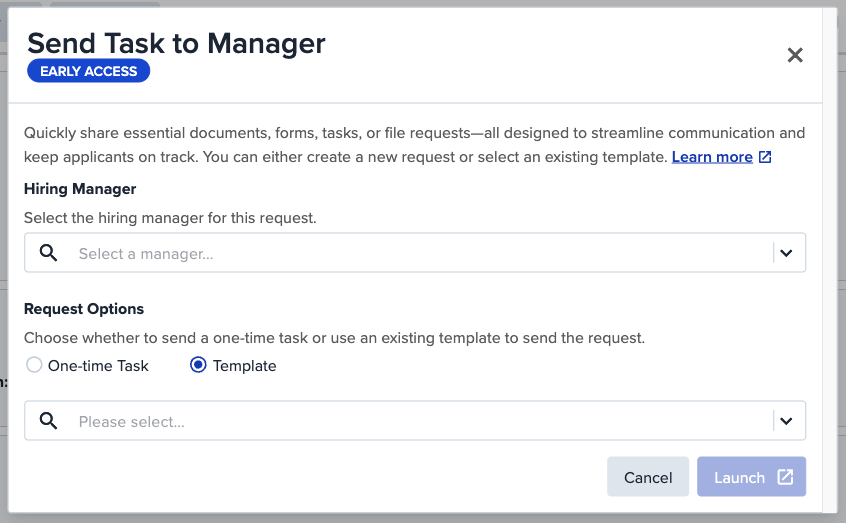
- Template: Select an existing Workflows template to send. If no templates have been created yet, this option will not display any results. See our article on how to create Advanced Workflow templates for guidance.
- One-Time Task: Send a task that will not be saved as a template. Choose from the following task types:
Once you have made your selections, click the Launch button to proceed to the Workflows screen and complete the request.
How Do I Use Send Request to Candidate?
Early Access: This option is part of an early access feature set. If you do not see it in your account, it may not yet be available to you.
- Request Options: Choose how you want to send the request -- either as a one-time task or using an existing template.
- One-Time Task: Send a task that will not be saved as a template. Choose from the following task types:
- Request an E-signature
- Send a Form
- Send a Document
- Request a Document
- Send a To Do
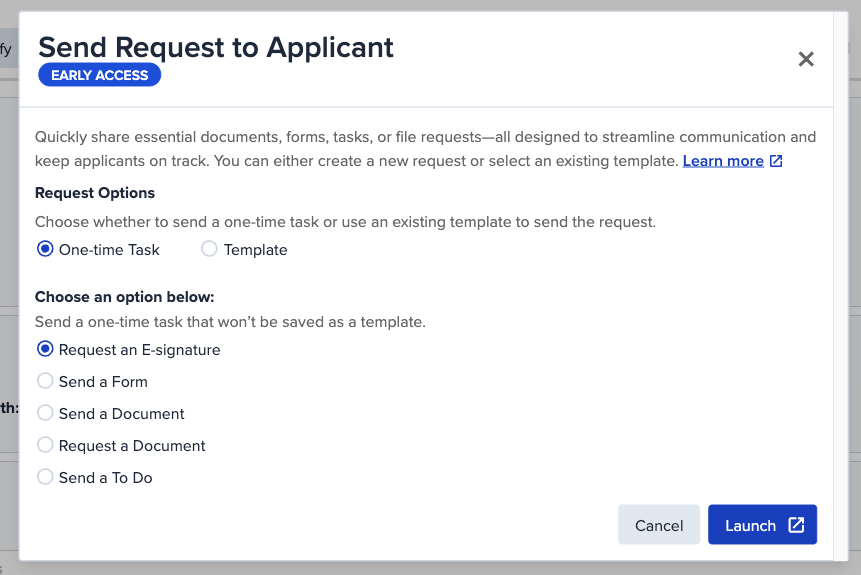
- Template: Select an existing Workflows template to send. If no templates have been created yet, this option will not display any results. See our article on how to create Workflow Management templates for guidance.
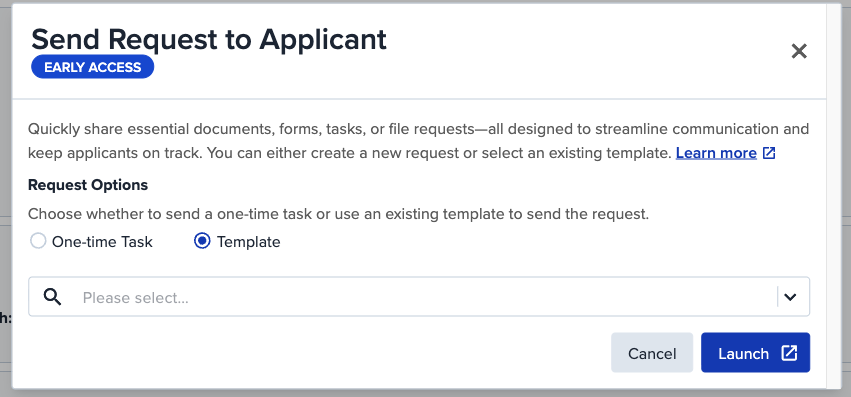
- One-Time Task: Send a task that will not be saved as a template. Choose from the following task types:
Once you have made your selections, click the Launch button to proceed to the Workflow Management screen and complete the request.
What Does the Candidate Experience Look Like?
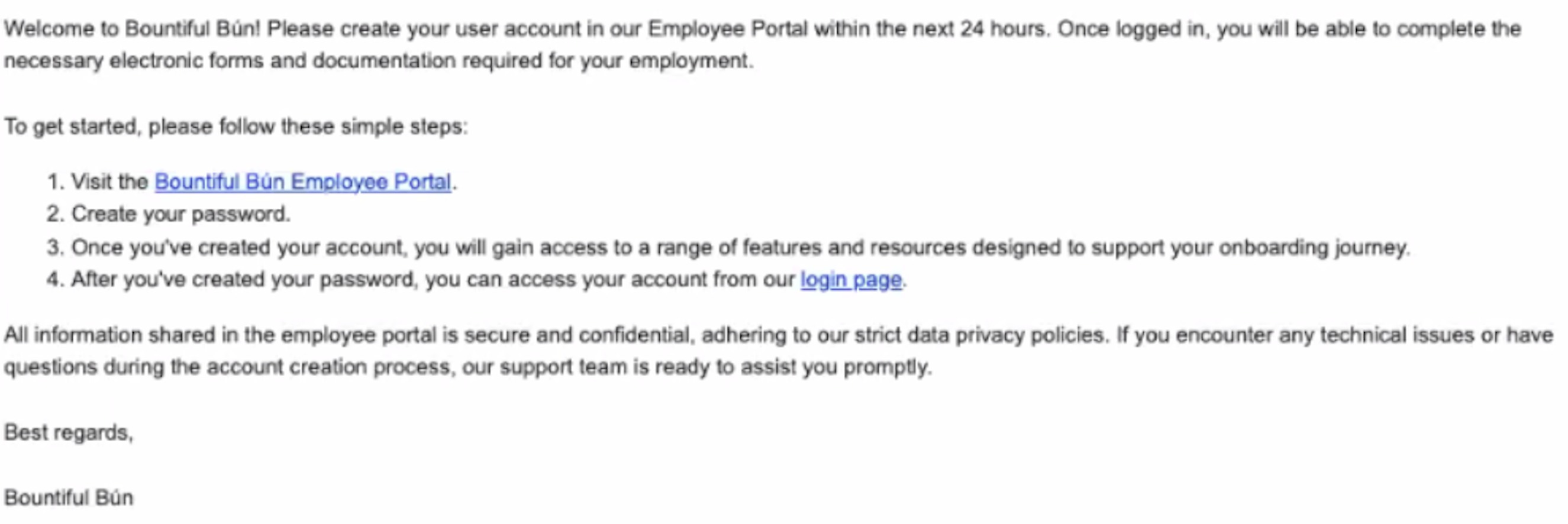
Once the request has been sent, the candidate will receive an email notification:
- First-time task: If this is the candidate's first task, they will receive an email prompting them to create an account. Once logged in, they will see the task and can complete it from there.
- Subsequent tasks: For any tasks after the first, the candidate will receive an email notification letting them know they have a pending task, along with a link to access it.
If you have questions about Workflow Management or run into anything unexpected along the way, our support team is happy to help. Do not hesitate to reach out -- we are always here to make sure things run smoothly.
